
Heading H1 – Off-White
This page is for your future reference
– to note the settings used.
Heading Section ‘Anatomy’
BLUE: ‘Section’ Settings
- Background Image of 1920 x 1080 px at 72dpi: Set to ‘COVER’ and ‘TOP CENTER“.
- SPACING: Padding set to TOP and BOTTOM using globals ‘SPACE-3xl’
GREEN: ‘Row’ Settings
- Layout: Block
- Spacing: Padding – leave default
BLACK: Header Text ‘MODULE‘ settings
- H1
- Font: BREATHING
- Color: off-white
- Heading Text Size: ‘text-5xl’
- Heading Line Height: ‘space-3xl’
BLACK: Text ‘MODULE‘ settings
- Leave all default – except..
- Text: color off-white
- ‘Text Text Size’ set to ‘text-M’
The ‘text module’ inside the ROW section – if used, the text should be short to avoid distortions.
last updated: 17th July 2026
Note: header settings
eg: padding may change depending on final banner images standard sizing
Heading Sizes
H1 Heading with default settings – (global heading text)
H2 = Default font, style, color, sizes
H3 – default values
H4 – default values
H5 – ‘near-black’ color
H6 – default values
H3 Breathing font, choose a color
H4 Breathing font, choose a color
H5 Breathing font, choose a color
H6 Breathing font, choose a color
Deleted font ‘BREATHING’ after hosting transfer -as was not registering. Replaced – reuploaded and named Breathing-Fs in global fonts
Sample Accordian Module
Your content goes here. Edit or remove this text inline or in the module Content settings. You can also style every aspect of this content in the module Design settings and even apply custom CSS to this text in the module Advanced settings.
Your Title Goes Here
Your content goes here. Edit or remove this text inline or in the module Content settings. You can also style every aspect of this content in the module Design settings and even apply custom CSS to this text in the module Advanced settings.
Your Title Goes Here
Your content goes here. Edit or remove this text inline or in the module Content settings. You can also style every aspect of this content in the module Design settings and even apply custom CSS to this text in the module Advanced settings.
Example – Tabs Module in section
Your content goes here. Edit or remove this text inline or in the module Content settings. You can also style every aspect of this content in the module Design settings and even apply custom CSS to this text in the module Advanced settings.
Your content goes here. Edit or remove this text inline or in the module Content settings. You can also style every aspect of this content in the module Design settings and even apply custom CSS to this text in the module Advanced settings.
Your content goes here. Edit or remove this text inline or in the module Content settings. You can also style every aspect of this content in the module Design settings and even apply custom CSS to this text in the module Advanced settings.
Your content goes here. content- elements – tabs – text – then edit relevant tab title and paragraph content.
Post Slider – example
ISSUE – Post Slider relies on bringing in the ‘Featured Image’ in the ‘page’ of a post.
ISSUE – Post Slider relies on bringing in the ‘Featured Image’ in the ‘page’ of a post.
Post Slider (2/3)
Posts Slider
Below is – Post Carousal Module (blog posts = Oscraps Kits)
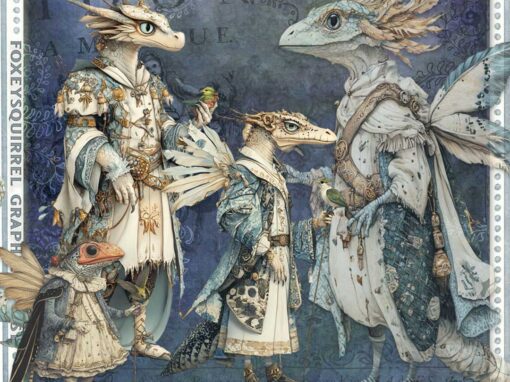
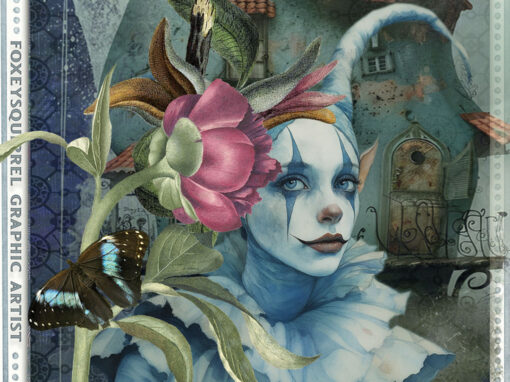
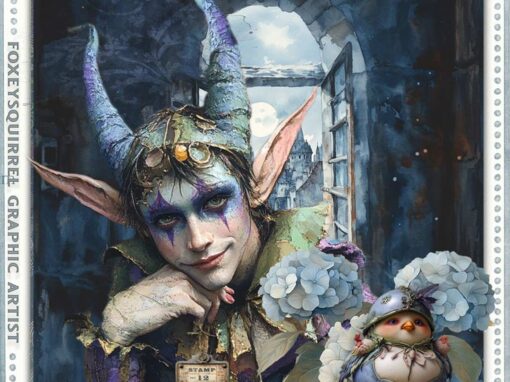
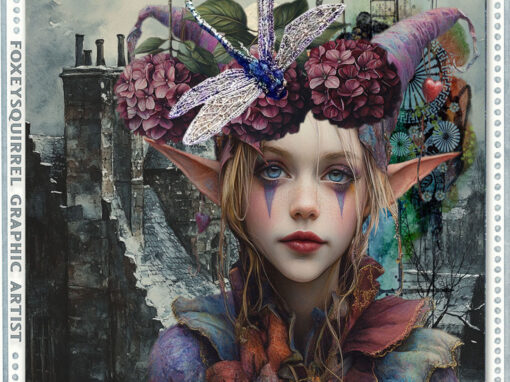
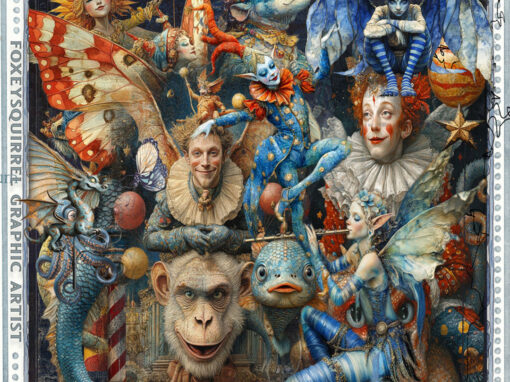
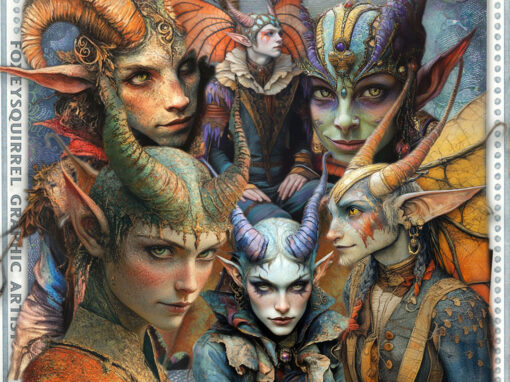
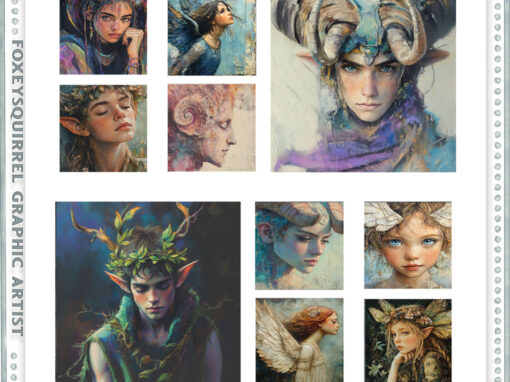

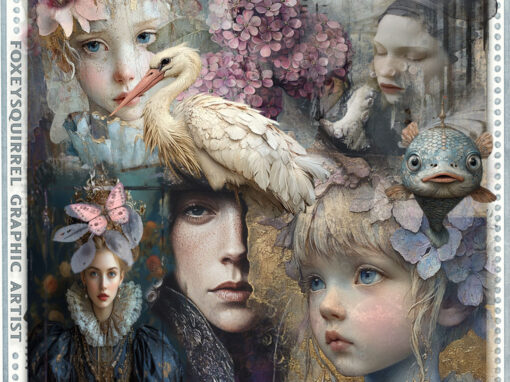
Your content goes here. Edit or remove this text inline or in the module Content settings. You can also style every aspect of this content in the module Design settings and even apply custom CSS to this text in the module Advanced settings.
Portfolio Module – only for ‘projects’
Portfolio – NO option to choose blog POST ‘category’ – just projects category – same for filterable portfolio.
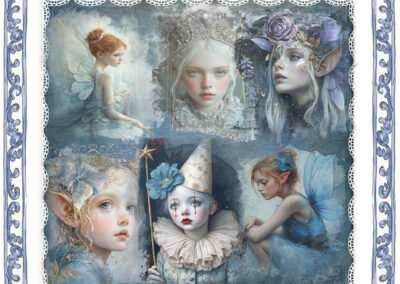

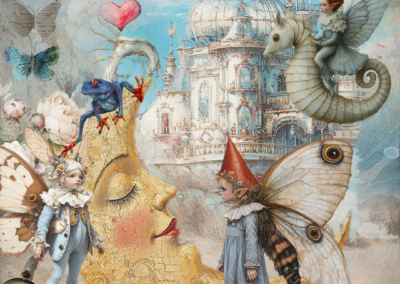

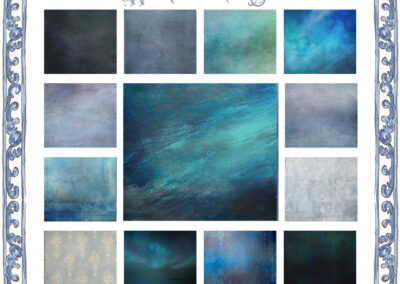
Example HERO module
Subtitle if requiredComes with solid color background – which can be reduced in opacity -(80% shown here) – or replaced with a tint or gradient, depending upon it’s purpose/use.
Example 2-HERO module
Subtitle if requiredUsing global Gradient – BASE – – or replaced with a solid colour of choice, depending upon it’s purpose/use. Change font, size, colour in DESIGN settings options.
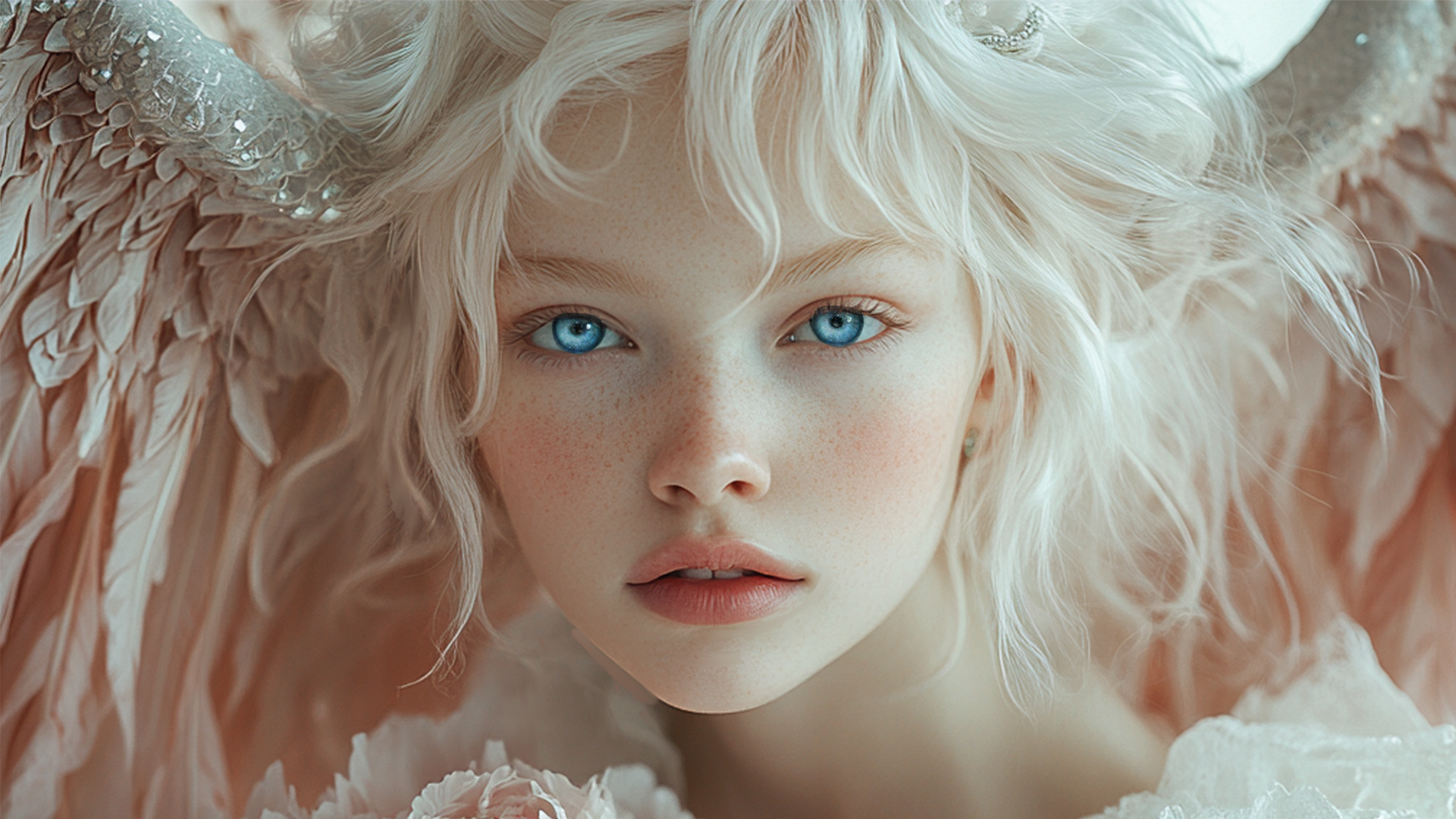
Example Blurb module
Change the BLURB image above – Title text using font breathing and secondary colour – You can also style every aspect of this content in the module Design settings and even apply custom CSS to this text in the module Advanced settings.
GLOBAL FOOTER below – has been saved to library – find that in Divi – library menu – ADDED TO ALL PAGES WITH SAME FOOTER.
NOTE: AS A GLOBAL FOOTER – IT IS BRIGHT GREEN (on hover) instead of blue – ANY CHANGES MADE HERE OR ANY GLOBAL FOOTER ..
IT WILL AFFECT *ALL* OF THESE FOOTERS (use/change carefully)
foxeysquirrel
Teddi Rutschman
Graphic Artist • Illustrator • Designer
Creating a magical world where imagination knows no boundaries.
Exclusive Collections
A growing collection of ‘website exclusive’ digital art kits that I hope you’ll love.